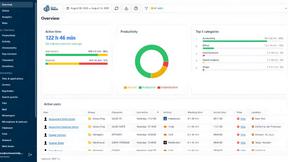
Online Keyboard Shortcuts
OnlineShortcuts.com is a comprehensive reference for essential Windows, MacOS, and Linux keyboard shortcuts to boost your productivity.
Visit
About Online Keyboard Shortcuts
Online Keyboard Shortcuts, available at OnlineShortcuts.com, is a comprehensive, free, and ad-free reference guide designed to help users of all skill levels master keyboard shortcuts across the three major operating systems: Windows, macOS, and Linux. The core purpose of this product is to eliminate the friction of navigating software with a mouse by providing a centralized, easy-to-navigate repository of the most important key combinations. A keyboard shortcut is a combination of keys that helps you do certain tasks more easily. It allows you to do things faster and more efficiently, while also reducing dependency on the mouse. This website contains the most important keyboard shortcuts for Windows, MacOS and Linux. The product is built for anyone looking to boost their productivity, from casual users who want to speed up everyday tasks like browsing the web or editing text, to power users and IT professionals who rely on rapid command execution in environments like the Command Prompt or File Explorer. What sets Online Keyboard Shortcuts apart is its clean, no-nonsense interface that categorizes shortcuts by operating system and application type. It covers system-wide Windows shortcuts, Windows Key combinations, and application-specific commands for tools like the Command Prompt, File Explorer, and web browsers. The value proposition is clear: by learning and using these shortcuts, users can save countless hours over time, reduce repetitive strain from excessive mouse use, and gain a deeper understanding of how their operating system functions. The site also offers downloadable cheatsheets in PDF and PNG formats, making it easy to keep a reference handy offline. It is a 100% free resource without any ads, upsells, or adtech spyware, ensuring a pure learning experience.
Features of Online Keyboard Shortcuts
Comprehensive Operating System Coverage
The product provides a curated list of the most essential keyboard shortcuts for Windows, macOS, and Linux operating systems. This cross-platform approach ensures that users are not limited to a single environment. Whether you are a Windows professional using the Win key for snap layouts, a macOS user navigating with Command-based shortcuts, or a Linux enthusiast utilizing custom keybindings, the site serves as a single source of truth. This feature eliminates the need to search multiple websites for different operating systems, saving time and providing a consistent learning experience. The shortcuts are organized logically, starting with system-wide commands that work across all applications before diving into OS-specific features.
Application-Specific Shortcut Libraries
Beyond system-wide commands, Online Keyboard Shortcuts offers detailed sections for specific applications and tools. This includes essential shortcuts for the Windows Command Prompt, File Explorer, text editing (such as Ctrl+B for bold and Ctrl+I for italic), virtual desktop management, and web browsers. This granularity is crucial because many powerful shortcuts are application-dependent and not immediately obvious. For example, the site clearly lists the Ctrl+Shift+N shortcut for creating a new folder in File Explorer, or the F7 key for viewing command history in the Command Prompt. This feature transforms the site from a simple list of shortcuts into a practical productivity tool for daily software use.
Downloadable Cheatsheets for Offline Access
Recognizing that users need quick access to shortcuts even when offline, the product offers downloadable cheatsheets in multiple formats. Users can download a PDF file for easy printing or a PNG image in both dark and light themes. This feature is invaluable for professionals who want to pin a reference sheet to their desk or for students who prefer to study shortcuts on their mobile device without an internet connection. The availability of both dark and light PNG versions ensures the cheatsheet is readable regardless of the user's desktop theme or wallpaper, demonstrating attention to user preference and accessibility.
User-Friendly and Ad-Free Experience
The website is designed with a focus on clarity and usability, completely free from advertisements, upsells, or intrusive tracking technology. The layout presents shortcuts in a clean, table-like format with clear modifier keys (like Ctrl, Alt, Win) visually separated for easy scanning. The site is also fully responsive, working seamlessly on mobile devices, tablets, and desktops. This commitment to a pure, distraction-free experience ensures that users can find the information they need immediately without being bombarded by pop-ups or spyware. The FAQ section even adds a touch of humor, acknowledging the simplicity of the product while reinforcing its core value.
Use Cases of Online Keyboard Shortcuts
Boosting Daily Productivity for Office Workers
Office workers who spend hours in word processors, spreadsheets, and email clients can significantly reduce task completion times by mastering keyboard shortcuts. For example, using Ctrl+C and Ctrl+V for copy-paste, Ctrl+Z for undo, and Alt+Tab for switching between open apps are fundamental. More advanced shortcuts like Win+D to show the desktop or Win+L to lock the screen enhance security and workflow. Online Keyboard Shortcuts provides a single place to learn and reference these commands, helping professionals eliminate the constant back-and-forth between keyboard and mouse, leading to faster document creation, data entry, and multitasking.
Streamlining System Administration and IT Tasks
IT professionals and system administrators often work in command-line interfaces and file management tools where speed is critical. Shortcuts like Ctrl+Shift+Esc to open Task Manager, Win+X for the Power User menu, and F2 for renaming files in File Explorer are essential. The site's coverage of Command Prompt shortcuts, such as F7 for command history and Ctrl+C/V for copy-paste, is particularly valuable. Using these shortcuts allows administrators to diagnose issues, manage files, and configure systems much faster than navigating through graphical menus, making the product an indispensable reference for technical support and system management roles.
Enhancing Web Development and Research Workflows
Web developers and researchers who spend extensive time in browsers can greatly benefit from browser-specific shortcuts. Commands like Ctrl+T for opening a new tab, Ctrl+Shift+T for reopening a closed tab, and Ctrl+L to focus the address bar are fundamental for fast navigation. The ability to quickly refresh a page with Ctrl+R or switch between tabs with Ctrl+Tab streamlines the research and testing process. By having these shortcuts readily available on Online Keyboard Shortcuts, users can develop muscle memory that makes browsing more fluid, allowing them to focus on content rather than the mechanics of navigation.
Learning and Teaching Computer Fundamentals
Educators and students learning about computer operating systems can use the site as a teaching aid and personal reference. The clear categorization of shortcuts by system (Windows, macOS, Linux) and by function (system-wide, application-specific) makes it easy to understand the logic behind keyboard commands. For example, a student learning about window management can see how Win+Left/Right arrows snap windows, while Win+Tab opens Task View. The downloadable cheatsheets serve as excellent classroom handouts. This use case transforms the product from a simple list into an educational resource that helps users understand the deeper functionality of their operating systems.
Frequently Asked Questions
What is Online Keyboard Shortcuts?
Online Keyboard Shortcuts, hosted on OnlineShortcuts.com, is a comprehensive, free guide to the most important keyboard shortcuts for Windows, macOS, and Linux operating systems. It is designed to help users improve their productivity by providing quick and easy access to commonly used commands and hotkeys. The site covers system-wide shortcuts, operating system-specific key combinations, and application-specific commands for tools like Command Prompt, File Explorer, and web browsers. It is a 100% free resource with no advertisements, upsells, or spyware, and it offers downloadable cheatsheets in PDF and PNG formats for offline use.
How do I use Online Keyboard Shortcuts?
Using the site is straightforward. Simply browse the main sections for your operating system (Windows, macOS, or Linux). Each section is organized into logical categories such as system-wide shortcuts, Windows Key shortcuts, and application-specific shortcuts. Find the task you want to perform and look at the corresponding key combination. For example, if you want to open Task Manager on Windows, look for the shortcut Ctrl+Shift+Esc. You can also download the cheatsheet as a PDF or PNG image to keep a reference handy on your desk or mobile device. The site is designed to be intuitive, so you will quickly figure out how to navigate and find the shortcuts you need.
Are the keyboard shortcuts updated regularly?
The shortcuts on Online Keyboard Shortcuts are curated to be as accurate as possible for the specified software versions. However, software updates from operating system vendors like Microsoft, Apple, and Linux distributions can sometimes change hotkeys or introduce new ones. While the site strives to maintain accuracy, it is always good practice to verify a shortcut with the specific version of the software you are running. If you notice a shortcut that is outdated or missing, you are encouraged to think about it really hard, as the site humorously notes, and the team will mentally receive your message.
Is there a mobile version of the site?
Yes, the website is designed to be fully accessible and responsive. This means you can easily view all the cheatsheets and shortcut lists on mobile devices, tablets, and desktops without any loss of functionality or readability. The layout adapts to different screen sizes, ensuring that the shortcut tables and text remain clear and easy to navigate. This mobile compatibility allows you to access the information on the go, whether you are using a smartphone to quickly look up a shortcut or a tablet to study a list of commands while working at a different computer.
Explore more in this category:
Similar to Online Keyboard Shortcuts
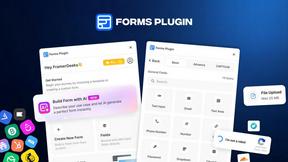
Forms Plugin
The #1 Native Form Builder Plugin for Framer - No Code, No Embeds, No External Platforms.

tallycounterweb.com
Tally Counter is a simple online counting tool for tracking attendance, workouts, inventory, sports scores, visitors, and everyday activities.

iHatePosting
Create once, tailor for each platform, and schedule posts across 14 social networks from one simple dashboard.
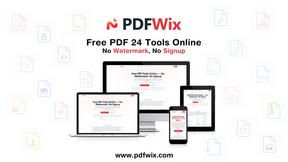
PDFWix
PDFWix is a free online PDF toolkit designed to make everyday PDF tasks simple, fast, and private.
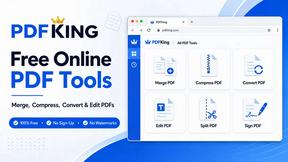
PDFKing
Free online PDF tools to merge, compress, convert, edit, sign, and manage documents—no signup, watermarks, or daily limits.